
Download SMRecorder – Free PC Audio & Video Recording Software for Windows, Mac, Android & iOS
SMRecorder is a powerful, free PC-based software that empowers users to record high-quality audio and video directly from their computer. Whether you're capturing online lectures, creating tutorial videos, recording gameplay, or documenting screen activity, SMRecorder delivers reliable performance across multiple platforms. With support for MP4 and AVI formats, users benefit from flexible file output options ideal for compression and sharing.
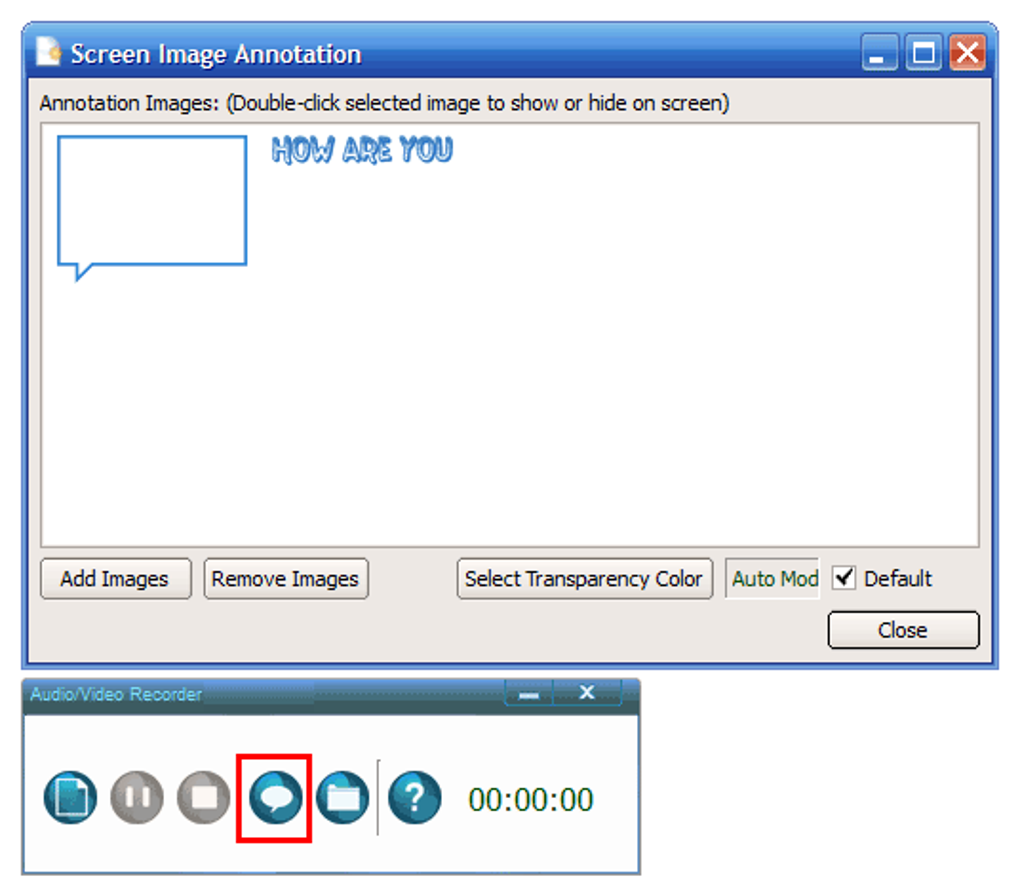
The tool includes real-time annotations, enabling you to highlight key points during recording. Advanced editing tools are accessible with a single click, streamlining post-production. SMRecorder is designed for both beginners and power users, offering an intuitive interface combined with professional-grade features.
Its lightweight design ensures smooth operation without draining system resources. The software is regularly updated to improve stability, add new features, and maintain compatibility with the latest operating systems. Download SMRecorder today and take full control of your screen and audio recording needs — all in one secure, user-friendly package.
Key Features of SMRecorder
SMRecorder stands out in the crowded market of screen recording tools thanks to its rich feature set and user-focused design. One of the most valuable features is the ability to record both audio and video simultaneously, making it perfect for creating educational content, live presentations, or YouTube tutorials. The software supports two primary output formats: MP4 and AVI, giving users flexibility depending on their sharing or storage needs. MP4 is ideal for web sharing due to its small file size and broad compatibility, while AVI offers higher quality for offline editing.
Another standout feature is real-time annotation. During recording, users can draw, highlight, or add text directly on the screen — a game-changer for teachers, trainers, and presenters who want to emphasize key information. These annotations are automatically embedded into the video, so there’s no need for post-production editing. Additionally, SMRecorder includes a built-in editing suite accessible right after recording. You can trim clips, merge videos, adjust volume, and apply basic filters — all without leaving the app.
For those who value privacy and security, SMRecorder does not require registration or account creation. Your recordings stay on your device unless you choose to upload them. The software also supports customizable hotkeys, allowing you to start, pause, and stop recordings with a single keystroke.
This is especially useful for gamers or professionals who need quick access. The interface is clean and intuitive, with clearly labeled buttons and real-time preview windows. Whether you're using Windows, Mac, Android, or iOS, the core experience remains consistent and reliable.
How to Install and Use SMRecorder on Your Device
Getting started with SMRecorder is simple and straightforward, regardless of your operating system. To begin, visit the official website and download the appropriate version for your device — whether it’s Windows, Mac, Android, or iOS. The installation process is quick and requires no technical expertise. On Windows and Mac, simply run the downloaded installer, follow the on-screen prompts, and complete the setup in under a minute. No additional software or drivers are required.
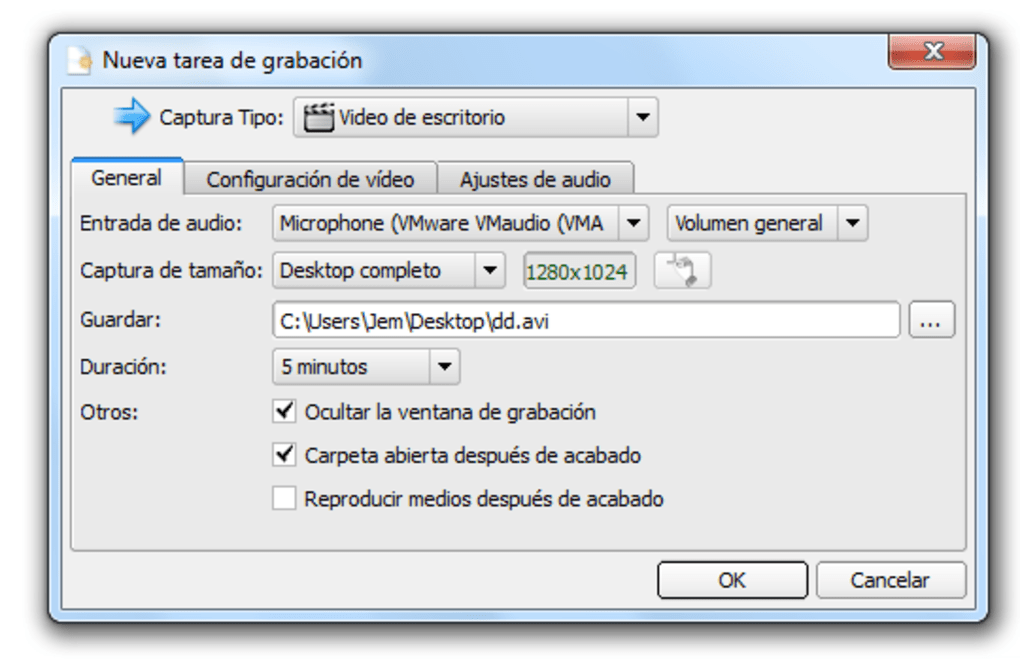
Once installed, launch SMRecorder and you’ll be greeted with a minimalist dashboard. The main interface displays your screen preview, recording controls, and format settings. To start recording, click the red “Record” button and choose your recording area — you can select the entire screen, a specific window, or a custom region. You can also toggle between microphone and system audio input, or record both simultaneously. If you want to annotate, enable the annotation tool before starting the recording.
During the session, a small overlay will appear in the corner of your screen, showing the recording status and time elapsed. Use the hotkeys (default: Ctrl+Shift+R to start, Ctrl+Shift+S to stop) for hands-free control. When you’re done, click “Stop” or use the hotkey. The video will automatically save to your chosen folder, with a default name like “Recording_01.mp4.” You can then preview the file, edit it using the built-in tools, or share it directly via email or cloud services.
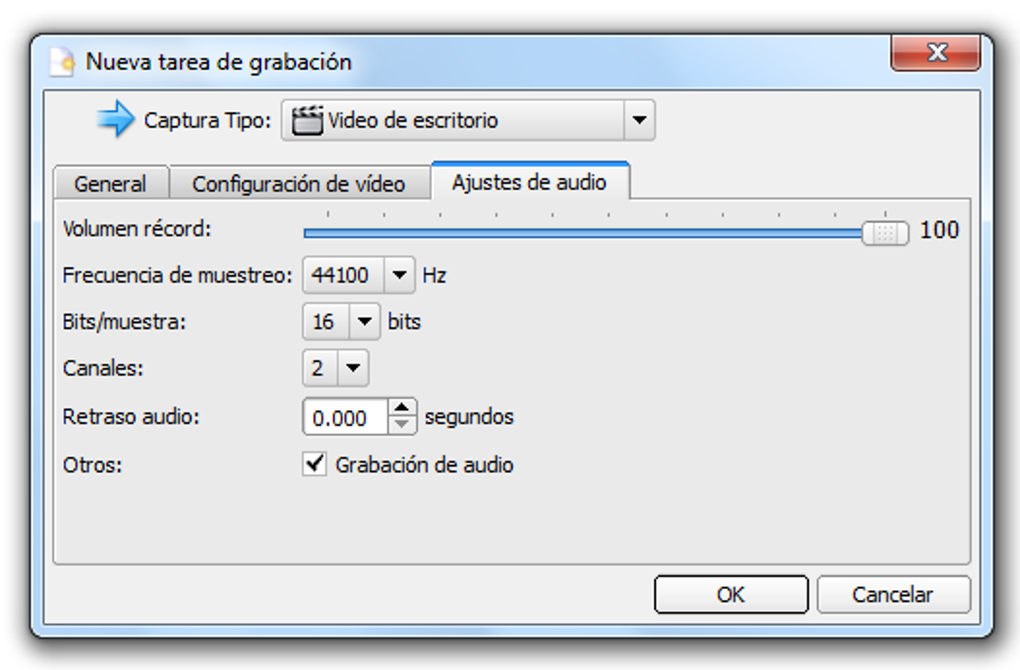
For advanced users, SMRecorder allows you to customize recording settings such as frame rate, resolution, and audio quality. These options can be found under the “Settings” menu, which also includes options for automatic updates and privacy preferences. Regular updates ensure that the software remains compatible with new OS versions and fixes any bugs promptly. The entire process — from installation to final export — is smooth, fast, and hassle-free.
Compatibility and System Requirements
SMRecorder is designed to be highly accessible, supporting a wide range of devices and operating systems. It runs smoothly on Windows 7 and later versions, including Windows 10 and Windows 11. For Mac users, SMRecorder is compatible with macOS Mojave (10.14) and newer, ensuring seamless performance on both Intel and Apple Silicon Macs. The software is also available as a mobile app for Android and iOS, allowing users to record from their smartphones or tablets.
On mobile platforms, SMRecorder offers a streamlined experience tailored for on-the-go recording. Android users can download the app from the Google Play Store, while iOS users can find it on the App Store. The mobile version supports HD recording, real-time annotation, and instant sharing — making it ideal for students, remote workers, and content creators who need flexibility.
System requirements are modest, making SMRecorder suitable for older hardware as well. On desktops, you’ll need at least 2GB of RAM and 500MB of free disk space. A modern graphics card is recommended for smooth performance, especially when recording high-resolution videos. The software is lightweight and doesn’t consume excessive CPU or memory, so it won’t slow down your device during recording sessions.
For users who rely on multiple devices, SMRecorder offers a consistent experience across platforms. Whether you're recording a lecture on your laptop, editing a clip on your tablet, or sharing a video from your phone, the workflow remains intuitive and efficient. The app also supports cloud integration, allowing you to back up recordings to Google Drive, Dropbox, or OneDrive with a few clicks.
Pros and Cons of SMRecorder
- Pros:
- Free to download and use with no hidden costs
- Supports both audio and video recording with high quality
- Real-time annotation tools for enhanced content clarity
- Lightweight and fast, with minimal system impact
- Offers MP4 and AVI output formats for flexible sharing
- Built-in editing tools for quick post-production
- Available on Windows, Mac, Android, and iOS
- Secure and private — no account required
- Customizable hotkeys for hands-free recording
- Cons:
- Limited advanced editing features compared to professional software
- No built-in video compression or watermark removal
- Mobile version lacks some desktop-level customization
- Occasional lag on very old systems with low RAM
- Documentation and support resources are limited
Frequently Asked Questions (FAQ)
- Is SMRecorder completely free to use?
-
Yes, SMRecorder is completely free to download and use. There are no trial periods, subscription fees, or hidden charges. You can record, edit, and export videos without any limitations.
- Can I record my screen and microphone at the same time?
-
Absolutely. SMRecorder allows you to record your screen along with both system audio and microphone input simultaneously. This is ideal for creating tutorials, voiceovers, or live presentations.
- What file formats does SMRecorder support?
-
SMRecorder supports MP4 and AVI formats. MP4 is recommended for web sharing due to its small size and compatibility, while AVI is better for high-quality offline editing.
- Is SMRecorder safe to download and install?
-
Yes, SMRecorder is safe and secure. It does not contain malware, ads, or tracking software. Your recordings are stored locally unless you choose to share them, and no personal data is collected.
- Can I use SMRecorder on my smartphone?
-
Yes, SMRecorder is available for both Android and iOS devices. You can download it from the Google Play Store or the Apple App Store and use it to record screen activity, voice, and add annotations.
Conclusion: Why You Should Download SMRecorder Today
SMRecorder is a versatile, reliable, and free tool that delivers professional-quality screen and audio recording without the complexity or cost of premium software. Whether you're a student capturing lectures, a teacher creating online lessons, a gamer documenting gameplay, or a professional sharing presentations, SMRecorder meets your needs with ease. Its real-time annotation, built-in editing, and multi-platform support make it a standout choice in 2024.
With minimal system requirements and a secure, no-registration setup, SMRecorder is accessible to users of all skill levels. The regular updates ensure long-term stability and compatibility with evolving operating systems. While it may lack some advanced features found in pro-level tools, its core functionality is robust and well-executed.
Don’t miss out on this powerful recording solution. Download SMRecorder today and start creating, sharing, and preserving your digital content with confidence and clarity.







